Replacing an electronic SimplySign signature or seal
Instructions for replacing a SimplySign qualified certificate via the Certum Panel.
You can replace your SimplySign electronic signature/seal yourself in two ways: through the Certum Panel or the SimplySign mobile application. The process is completely free of charge and fully online.
1. Replacement e-mail notification
The process begins with receiving an e-mail explaining the need to replace your SimplySign electronic signature/seal with a new version:
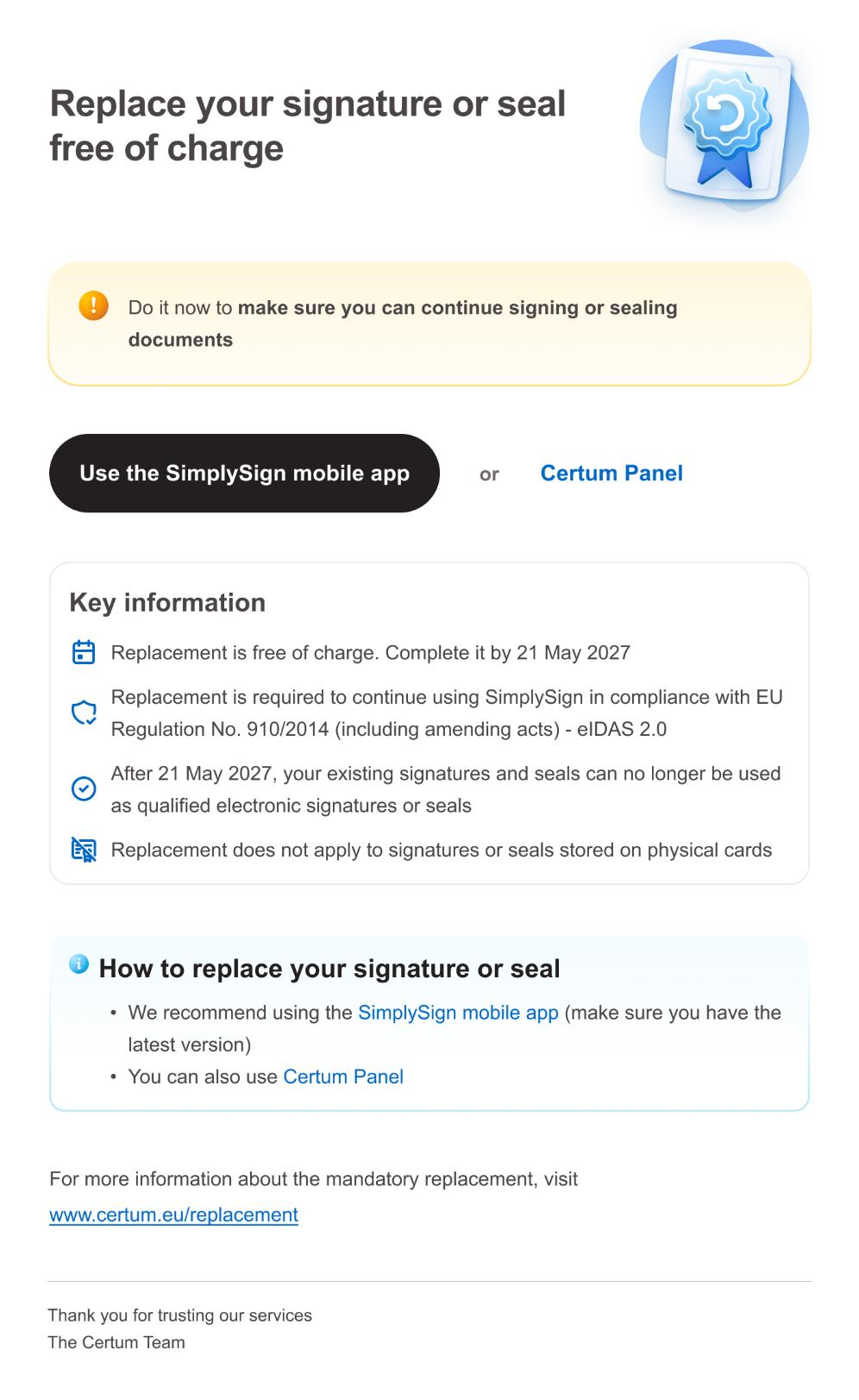
The e-mail provides two replacement options:
- Via the Certum Panel.
- Via the SimplySign application.
This guide describes the first option (via the Certum Panel).
2. Replacement via the Certum Panel
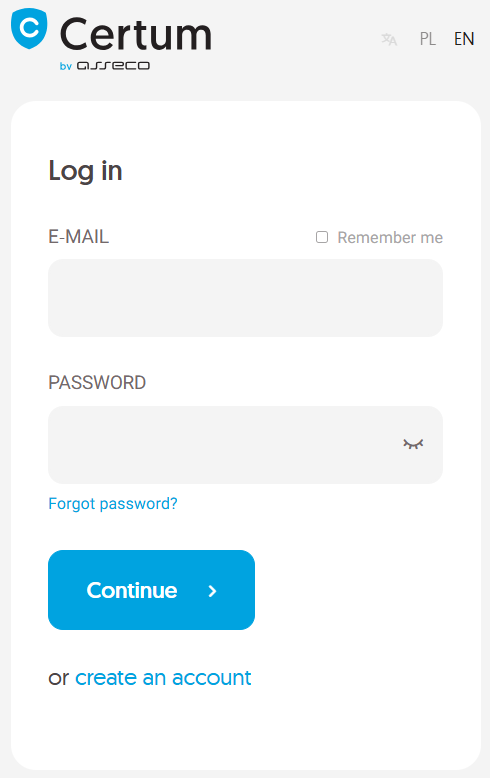
The Certum Panel is available at: https://panel.certum.pl/
To sign in, enter your account credentials (e-mail address and password), and then click Continue. On the login screen, you can select the panel language version (Polish or English).
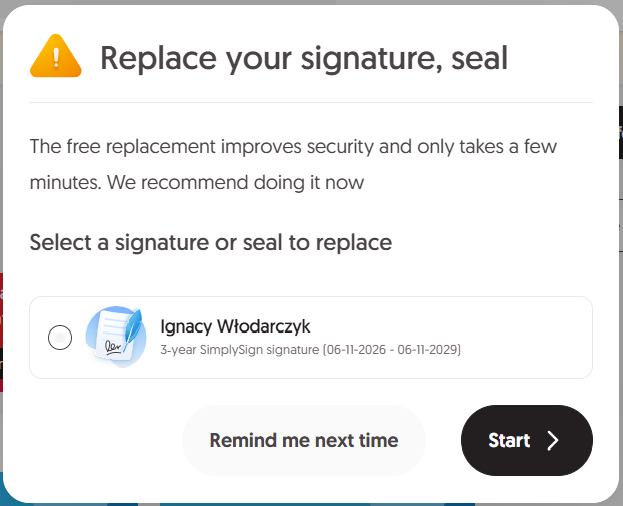
To start the replacement process, choose one of the three available options:
1a. After signing in to the Certum Panel, select the signature/seal to be replaced and click Start.
1b. In the Certum Panel, you will see the message: „Your signatures and/or seals are waiting to be replaced – Replace now”. Click Replace now:
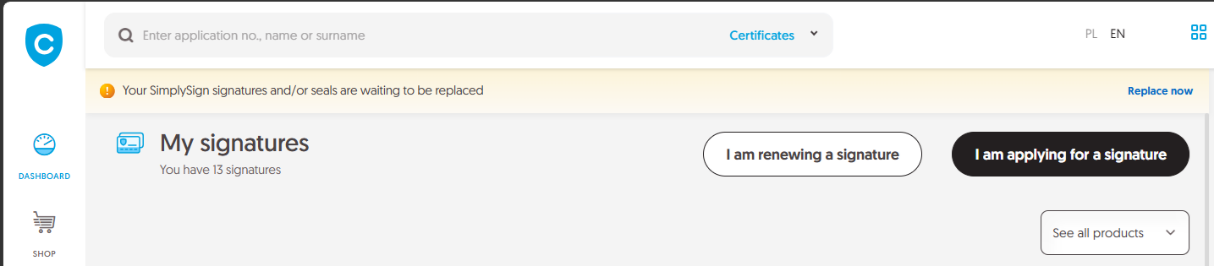
Next, as in step 1a, select the signature/seal to be replaced and click Start.
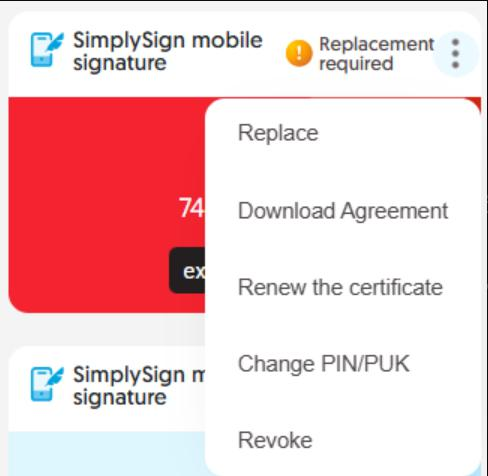
1c. You can also start the replacement process from a signature/seal marked Replacement required and highlighted with a red background. Click the three-dot icon, and then select Replace:
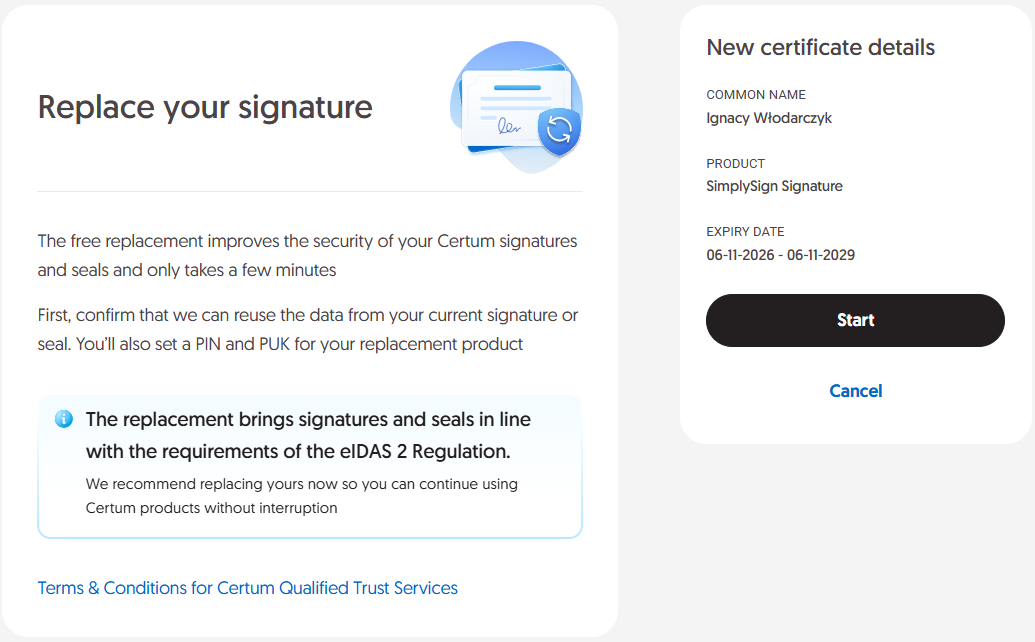
The screen displays a summary of the process information. Click Start again.
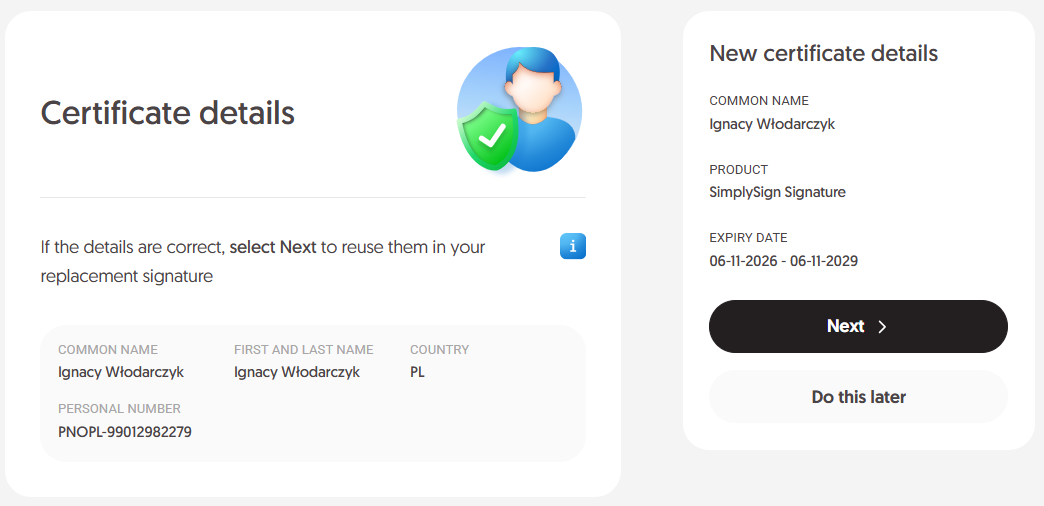
Verify that the signature or seal details are correct. If you want to reuse them in the new product, select Next.
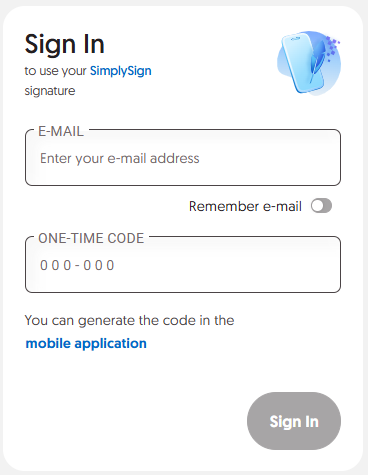
You may be asked to sign in to your SimplySign account. If yes:
- enter the e-mail address associated with your account,
- enter the one-time code generated in the SimplySign app,
- click the Sign In button.
Select Confirm.
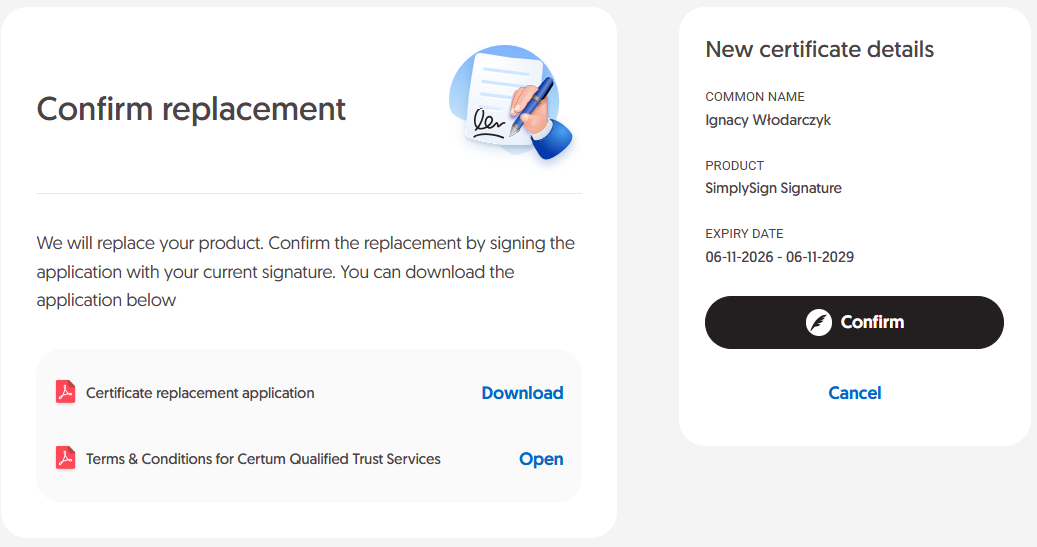
Review the certificate replacement application, once again verifying that all details are correct. If the information is correct, click I have an electronic signature SimplySign.
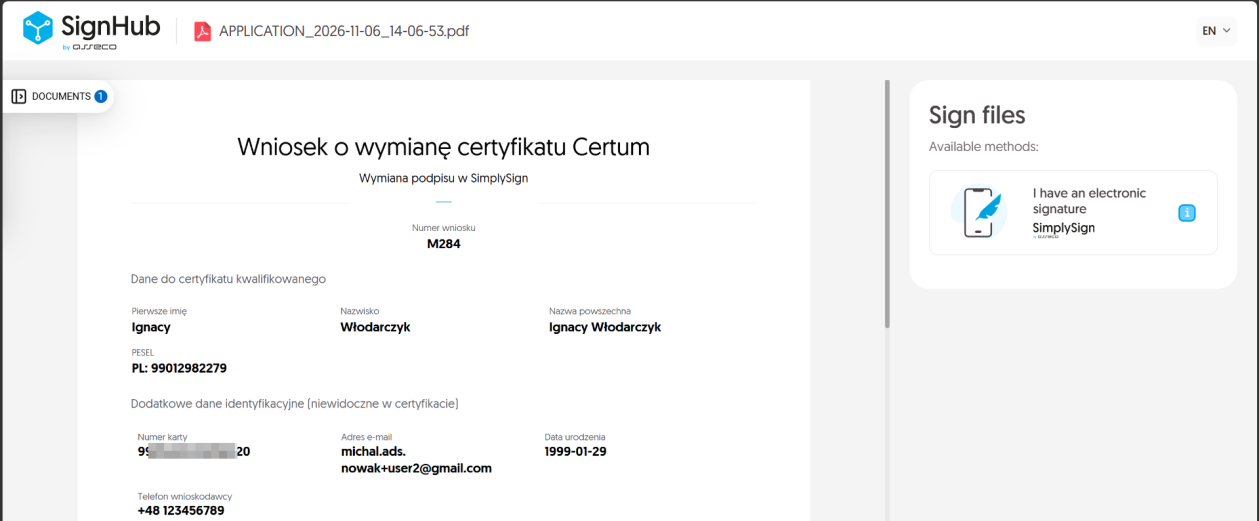
6a. You may be asked again to sign in to your SimplySign account – please follow the guidelines from step 4.
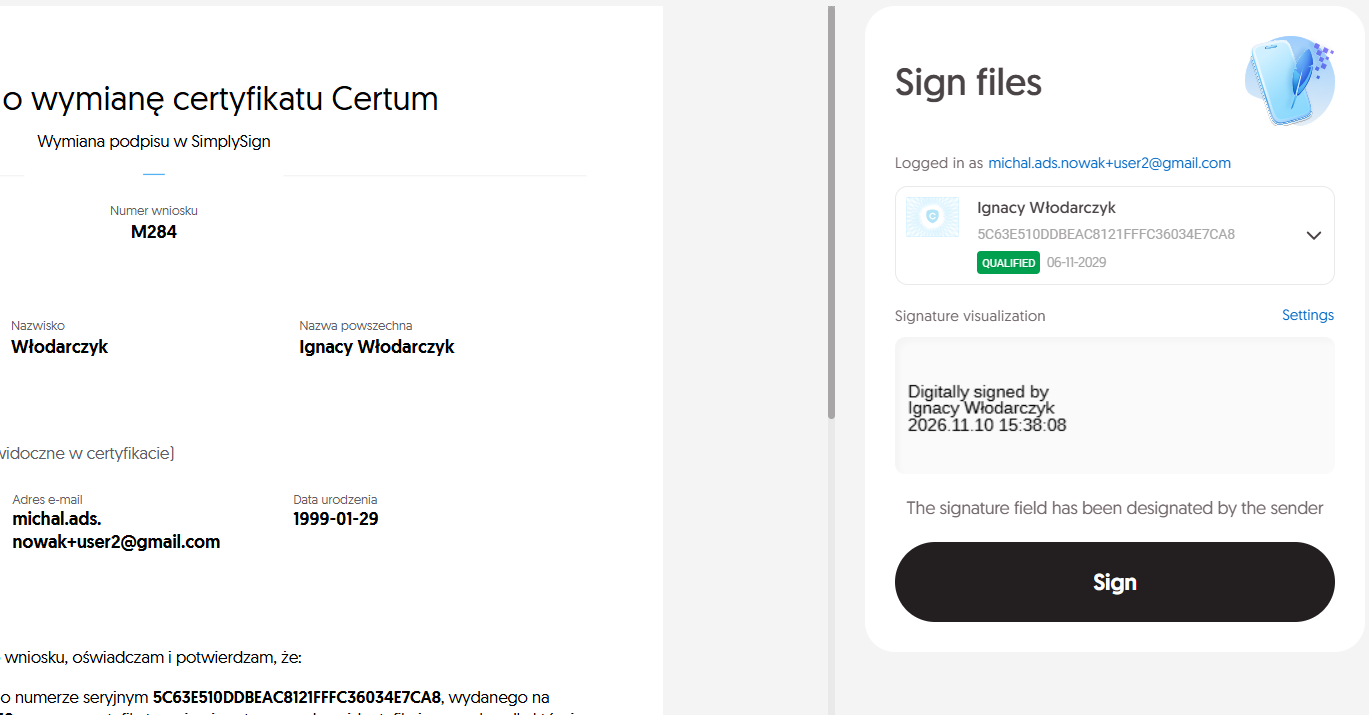
Sign the document using the same signature or seal that you are currently replacing.
Verify the serial number. It must match the serial number specified in the application.
Select the appropriate signature/seal and click Sign.
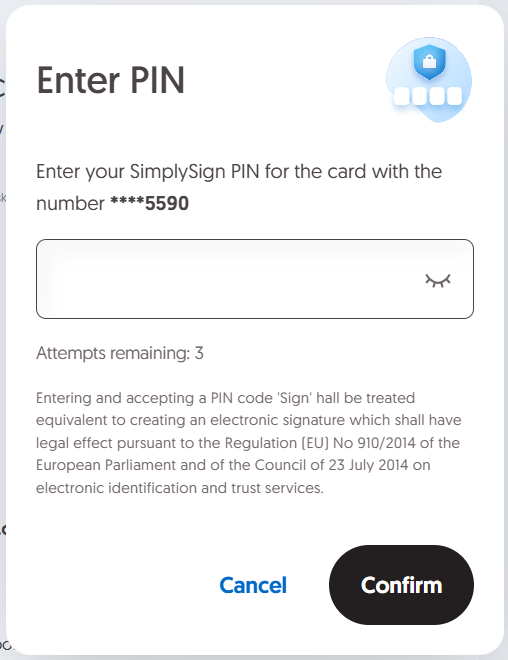
Enter the PIN number for your signature/seal and click Confirm.
In the next steps, you will set the following codes:
- a PIN required to use the new signature/seal,
- a PUK that can be used to unblock the PIN if it becomes locked.
Click Set your PIN and PUK.
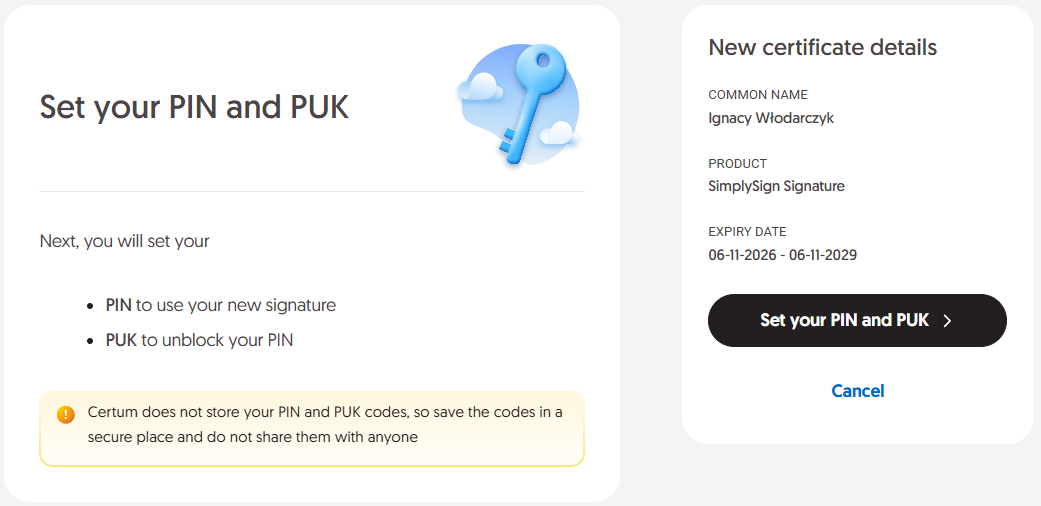
Certum does not store your PIN and PUK codes. Make sure to save them in a secure place and do not share them with anyone.
If incorrect PIN or PUK codes are entered multiple times, your certificate will be permanently blocked. In such a case, you will need to purchase a new certificate.
9a. You may be asked again to sign in to your SimplySign account – please follow the guidelines from step 4.
Enter the PIN and PUK codes you have chosen and click Next.
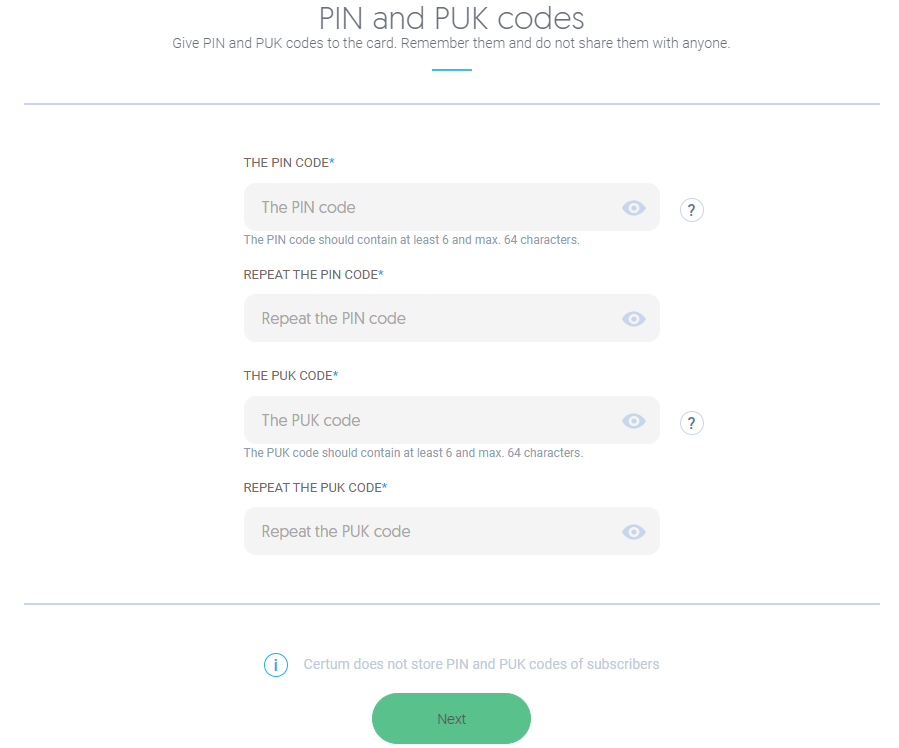
Entering an incorrect PIN or PUK code three times will permanently block the certificate. In such a case, you will need to purchase a new certificate.
After successfully completing the previous steps, you will be able to use your signature/seal.
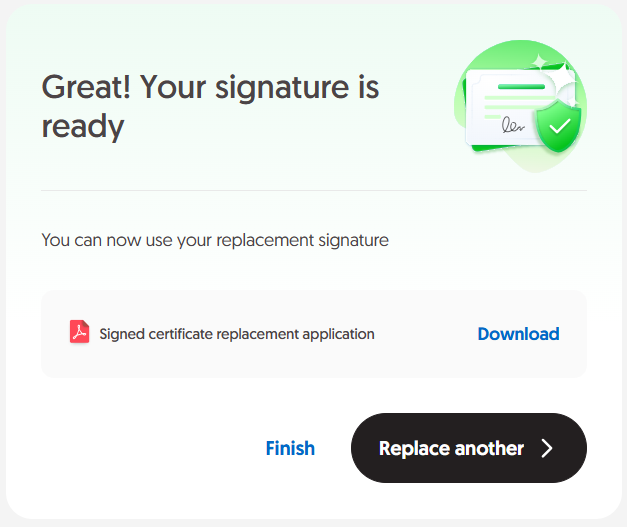
Your new signature or new seal will be installed automatically.
Download file
| File name | File |
|---|---|
|
How to replace an electronic SimplySign signature or seal in Certum Panel? |
Didn’t find the answer to your question?
