Replacing an electronic SimplySign signature or seal in the SimplySign mobile app
You can replace your SimplySign electronic signature/seal yourself in two ways: through the Certum Panel or the SimplySign mobile application. The process is completely free of charge and fully online.
1. Replacement e-mail notification
The process begins with receiving an e-mail explaining the need to replace your SimplySign electronic signature/seal with a new version:
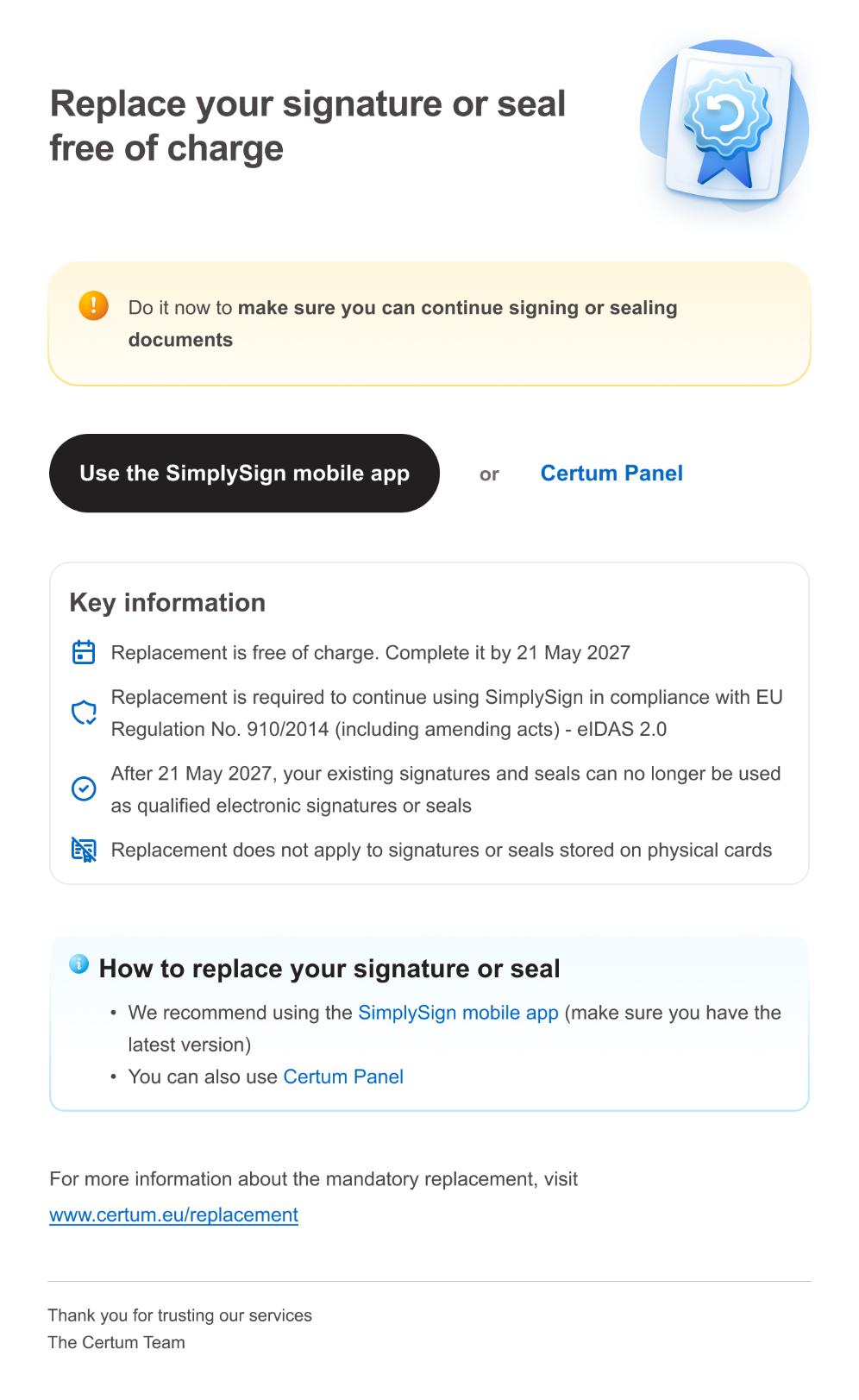
The e-mail provides two replacement options:
This guide describes the second option (via the SimplySign application).
2. Replacement via SimplySign application
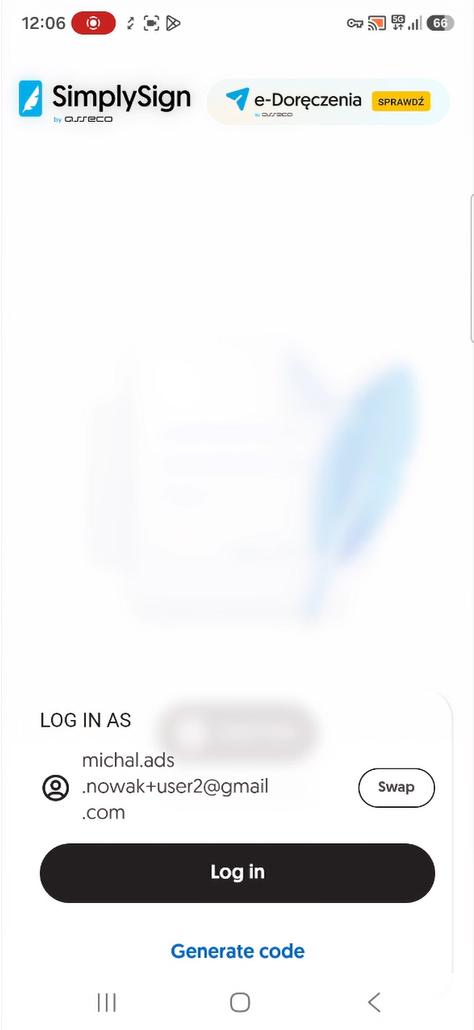
1. Launch and sign in to the SimplySign application.
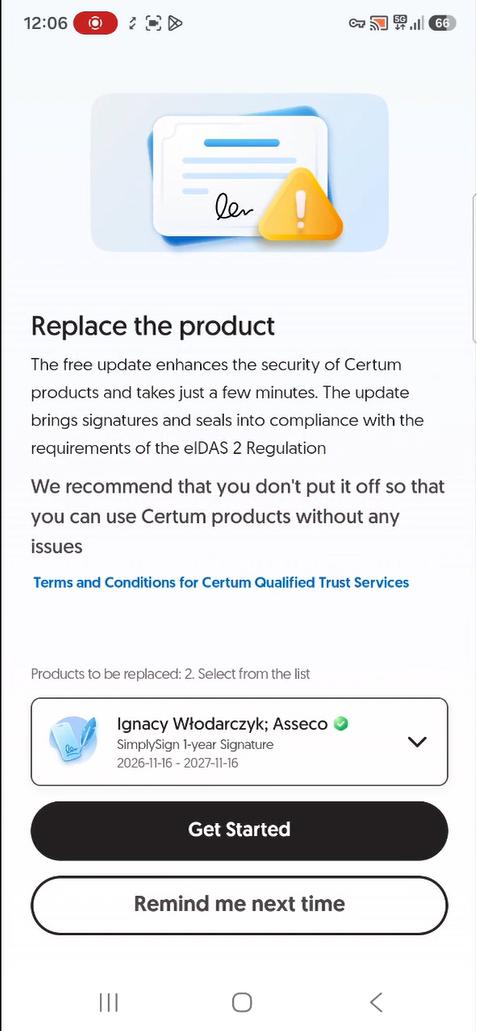
3. Review the certificate replacement application, verifying that all details are correct.
If the information is correct, click Next.
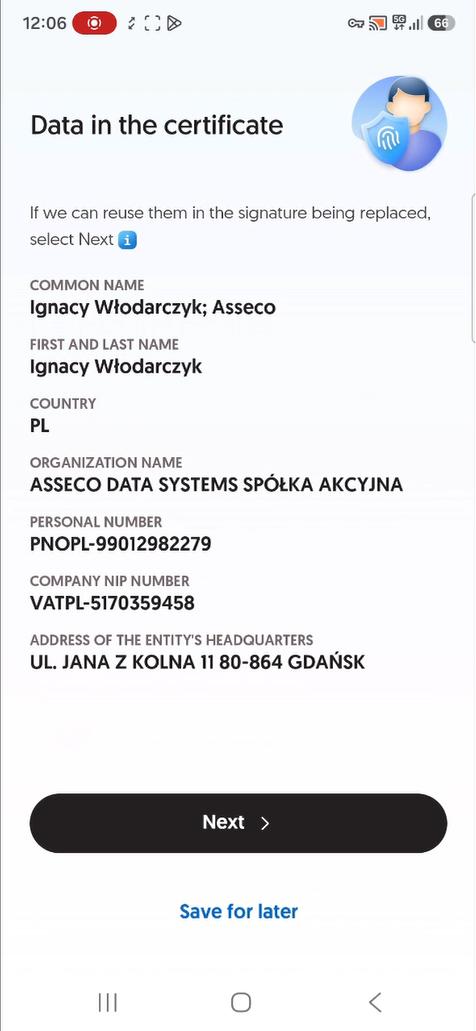
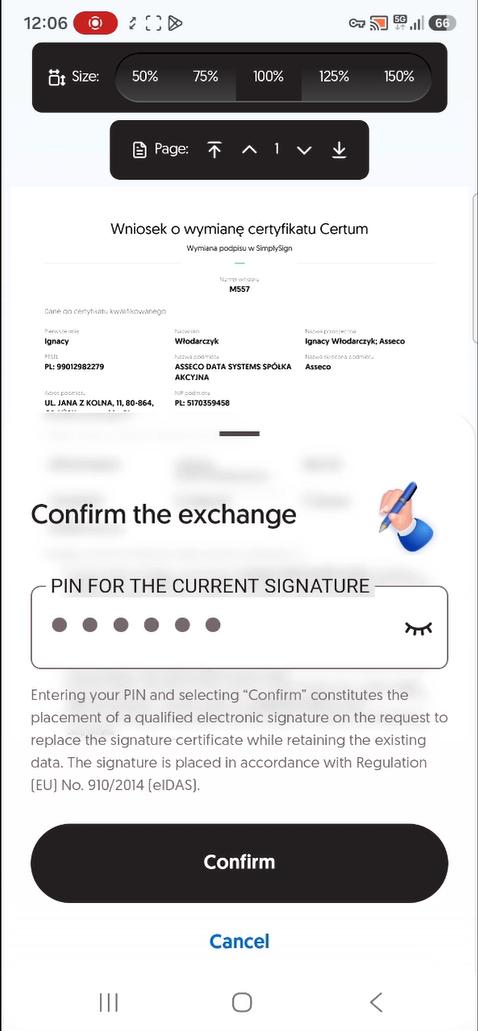
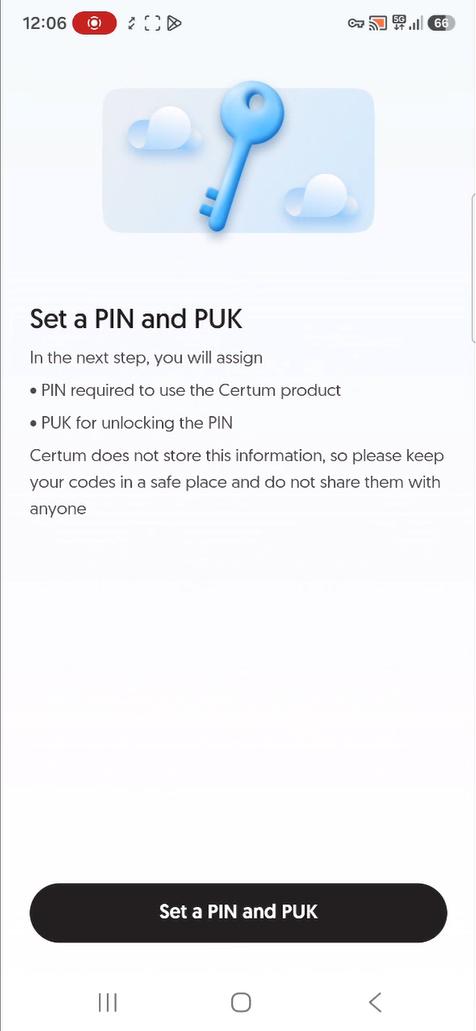
5. In the next steps, you will set the following codes:
- a PIN required to use the new signature/seal,
- a PUK that can be used to unblock the PIN if it becomes locked.
Click Set a PIN and PUK.
Certum does not store your PIN and PUK codes. Make sure to save them in a secure place and do not share them with anyone.
If incorrect PIN or PUK codes are entered multiple times, your certificate will be permanently blocked. In such a case, you will need to purchase a new certificate.
6. Enter the PIN and PUK codes you have chosen and click Set a PIN and PUK.
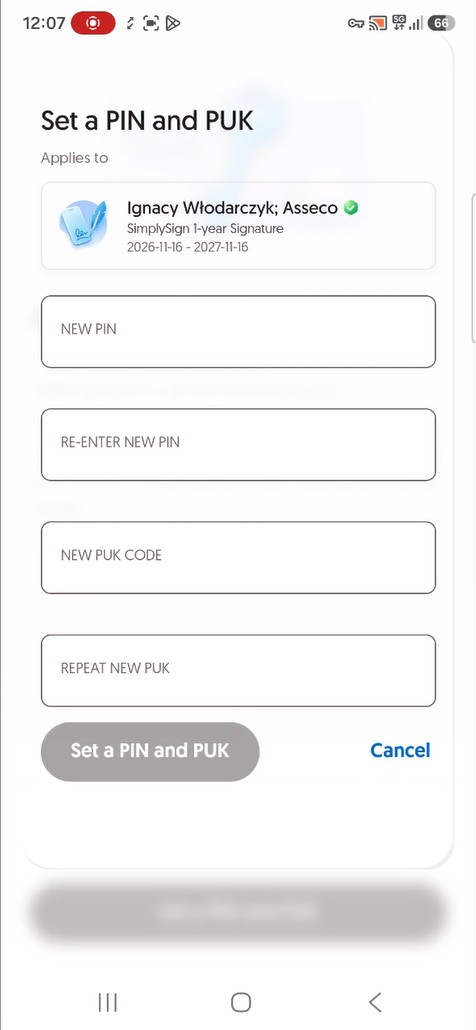
Entering an incorrect PIN or PUK code three times will permanently block the certificate. In such a case, you will need to purchase a new certificate.
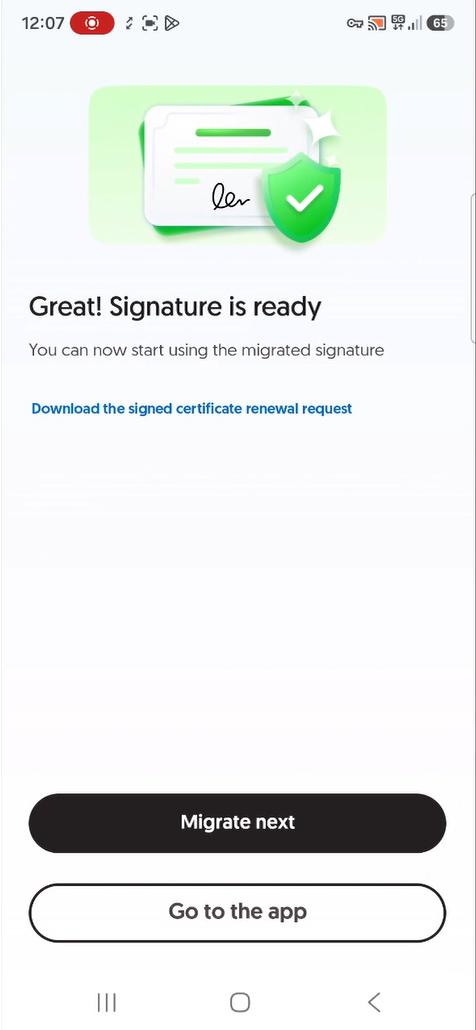
 How to replace an electronic SimplySign signature or seal in Certum Panel?
