This website uses cookies and other tracking technologies to help navigate and provide feedback, analyze the use of our products and services, support our promotional and marketing efforts, and provide content from third parties.
Check
out more cookies settings to manage your preferences.
More information on cookies and data storage can be found in our
Privacy policy
The technical storage or access is strictly necessary for the legitimate purpose of enabling the use of a specific service explicitly requested by the subscriber or user, or for the sole purpose of carrying out the transmission of a communication over an electronic communications network.
The technical storage or access is necessary for the legitimate purpose of storing preferences that are not requested by the subscriber or user.
The technical storage or access that is used exclusively for statistical purposes.
The technical storage or access that is used exclusively for anonymous statistical purposes. Without a subpoena, voluntary compliance on the part of your Internet Service Provider, or additional records from a third party, information stored or retrieved for this purpose alone cannot usually be used to identify you.
The technical storage or access is required to create user profiles to send advertising, or to track the user on a website or across several websites for similar marketing purposes.

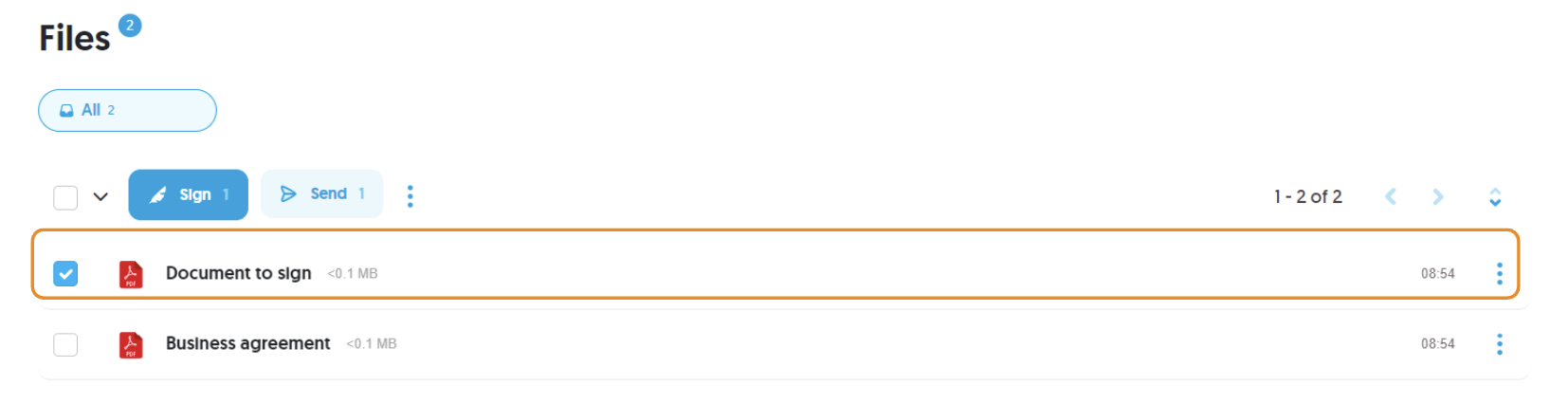
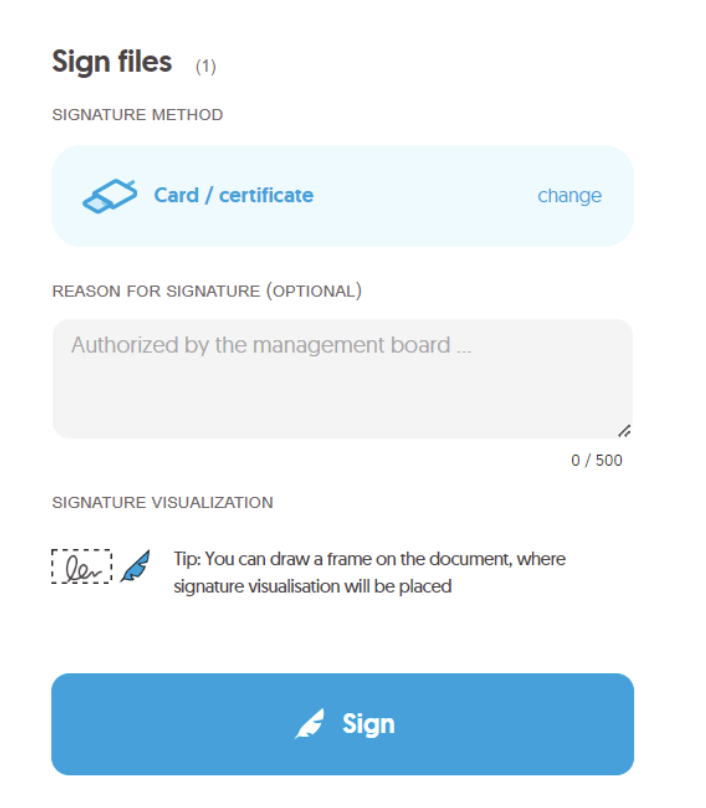
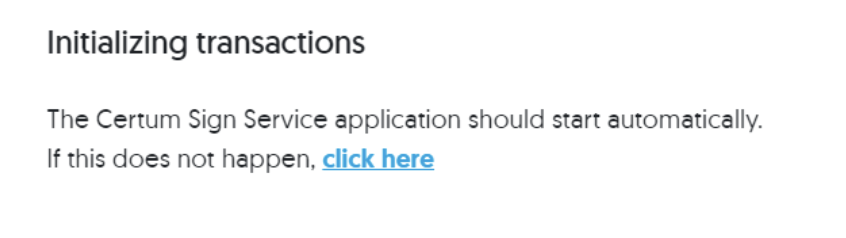
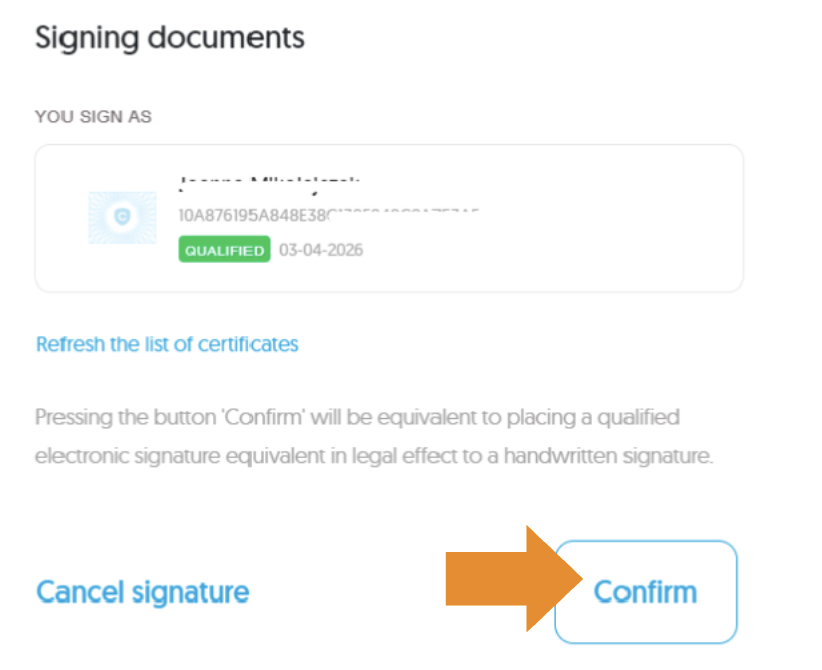
 Signing a PDF file without a CertumSign account – Basic sign (SES) using an SMS Code
 What is a qualified validation report?
